How I Use ChatGPT to Turn Podcast Transcripts into SEO-Rich Show Notes
Learn how to turn long podcast transcripts into clean, concise, search-friendly show notes using a simple ChatGPT megaprompt.


Episode titles get plenty of attention, but show notes are often rushed or treated as an afterthought. That's a mistake. Show notes are where you explain exactly what an episode covers and give podcast apps and search tools the context they need to understand it.
The opening lines matter most. In many podcast apps and search results, only the first few sentences are visible. Those lines influence how an episode is categorized and whether someone clicks to listen. If they are vague or generic, your episode becomes harder to discover.
In the last post, we focused on crafting episode titles using prompt chaining. I have an alternative approach for creating show notes. Instead of a long back-and-forth with ChatGPT, this post focuses on using a single, well-planned megaprompt to generate a strong first draft.
I’ll show you how to use a full podcast transcript to create structured, scannable show notes with ChatGPT, then refine them with a light human edit to keep them accurate, readable, and useful.
Step 1: Upload Your Transcript Into ChatGPT
Your show notes will be based on your episode transcript, so the first step is to upload that transcript into ChatGPT. If you're using Alitu, it'll create episode transcripts for you automatically. Open a new chat and upload the full transcript for the episode you’re working on.
For show notes, it’s best to use the complete transcript rather than a short excerpt. This gives ChatGPT the full picture of the episode and helps it work with the actual language used throughout the conversation.
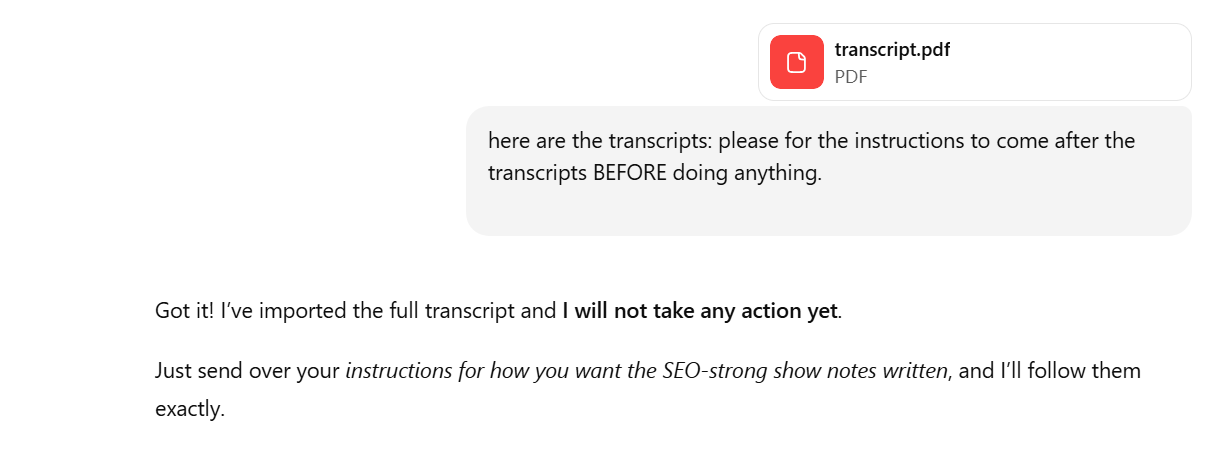
PDF uploads work well, even for long episodes. For example, an hour-long episode from Geopats Abroad resulted in a transcript of roughly forty pages, and the full PDF was uploaded without any issues.
Step 2: Create Your Megaprompt
Next, it’s time to create your megaprompt. This is a single set of instructions that tells ChatGPT how to turn your transcript into clear, scannable, search-friendly show notes.
A megaprompt works well for show notes because it sets expectations upfront. Instead of refining the output through multiple prompts, you give ChatGPT the context and constraints once and let it generate a strong first draft.
ChatGPT focuses on the wording of your instructions, not how they are formatted. You can structure your megaprompt in whatever way is easiest for you to reuse.
A strong megaprompt usually includes four parts:
- Background: A brief explanation of what the episode covers and who it is for.
- Task: Clear instructions for what you want ChatGPT to produce from the transcript.
- Style: Guidance on tone, length, and how scannable the show notes should be.
- Details: Any rules or constraints you want ChatGPT to follow before generating the draft.
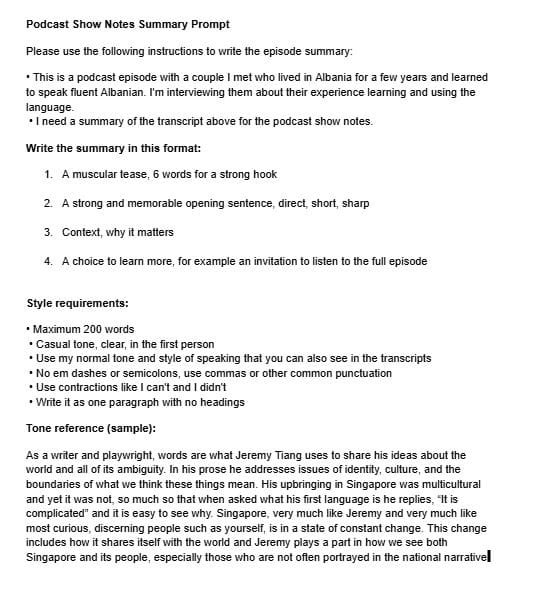
Below are two examples of the same megaprompt. One is written as a single block of text. The other uses headings and spacing. Both produce the same result.
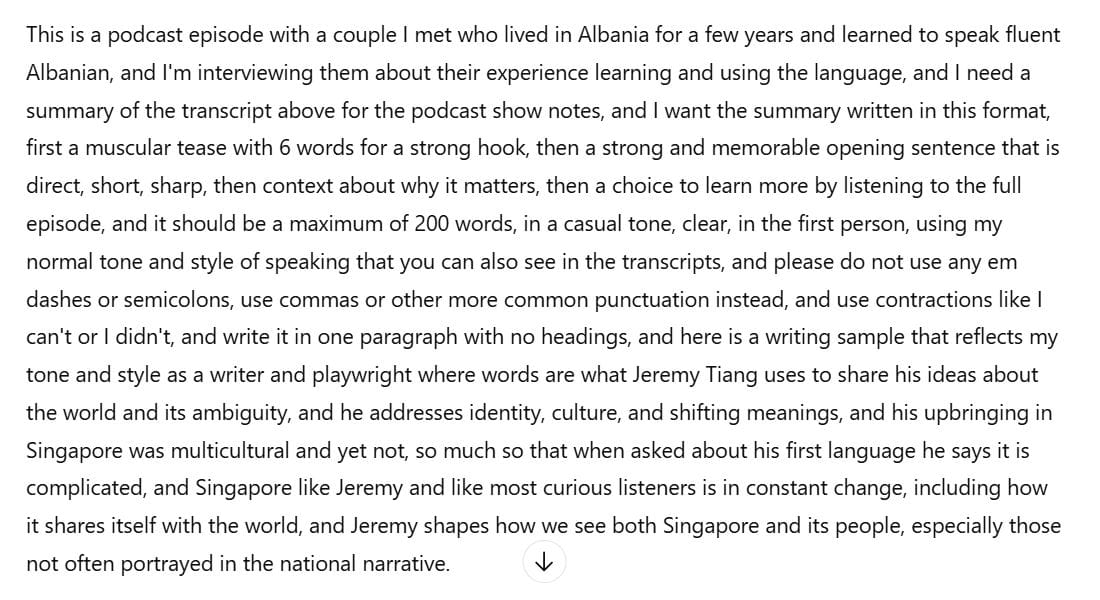
And now, the same megaprompt with formatting...
Step 3: Add Your Megaprompt to ChatGPT
Once your transcript is uploaded, paste your full megaprompt into the same chat. Because you’ve already set the context, task, and constraints, ChatGPT can generate a strong first draft in one pass.
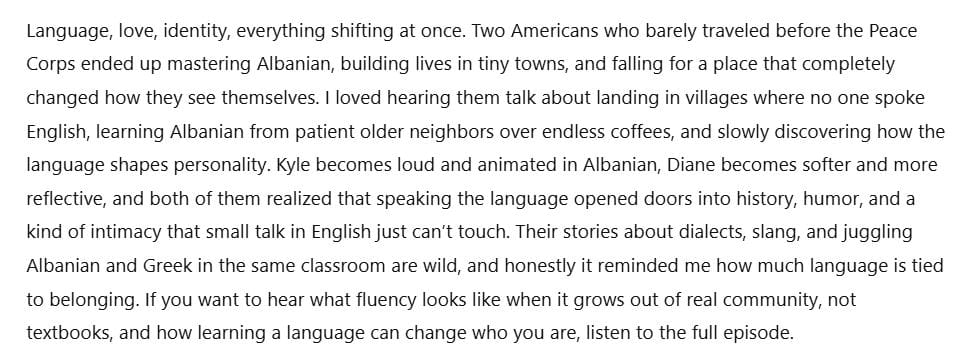
The output won’t be perfect, but it should be structured, readable, and closely aligned with your instructions. At this stage, the goal is simply to get a solid starting point that saves you time.
Below is the output from my example episode so you can see what this looks like in practice.
Step 4: Edit ChatGPT’s Output (the human edit)
Even with a strong megaprompt, ChatGPT will sometimes add extra examples or include details that do not quite fit your episode. This is where the human edit matters.
At this stage, you can either revise the draft yourself or ask ChatGPT to make specific changes. The goal is to tighten the language, remove anything unnecessary, and make sure the show notes sound like you.
Do not skip this step. A light edit is usually enough to catch small inaccuracies, generic phrasing, or details that do not belong.
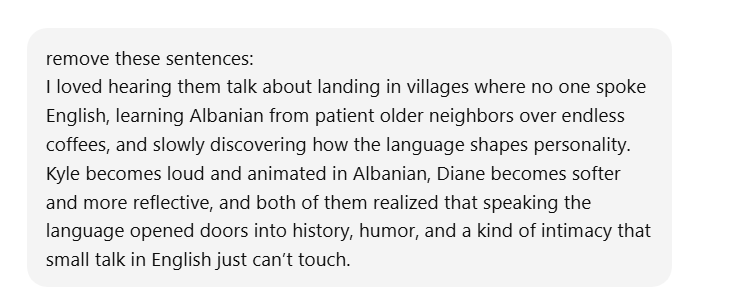
In the Geopats Abroad example, ChatGPT added more examples than I wanted, so I asked it to remove them and focus on the main themes of the conversation.
Step 5: Strengthen the SEO Before Finalizing
Before you finalize the show notes, do one last pass with SEO in mind. The notes should already read well for humans. This step is simply about making sure the language also lines up with how people search.
I like to ask ChatGPT to identify the strongest keywords and phrases based on the transcript and the draft show notes. This helps highlight useful terms that may not stand out enough yet.
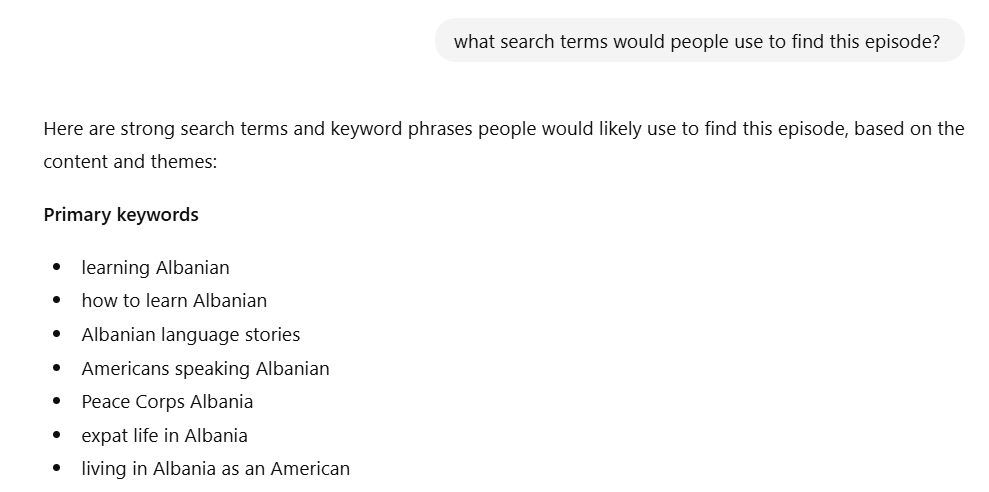
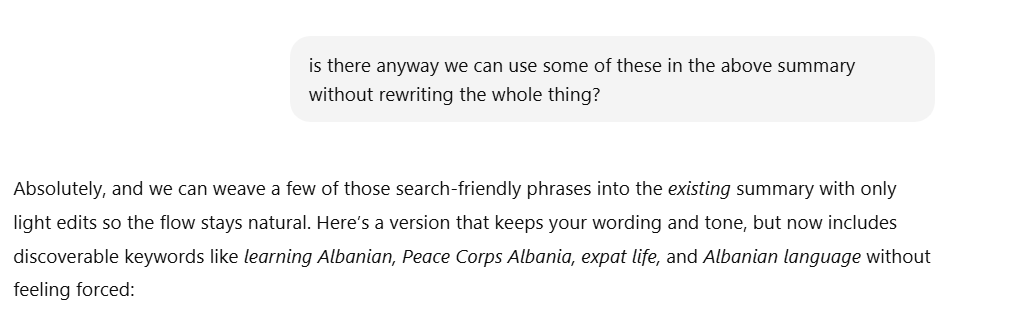
Once I have that list, I check whether those terms appear naturally in the show notes, especially in the opening lines. If something important is missing or buried, I adjust the wording slightly.
Step 6: Add the Final Show Notes to Your Podcast Host
Once you’re happy with the show notes, do one final read-through and add them to your podcast hosting platform.
After publishing, keep an eye on your analytics over the next few weeks. When I update older episodes using this process, I often see small but steady increases in discovery.
Step 7: Reuse Your Megaprompt for Future Episodes
Once you have a megaprompt that works, you can reuse it for every episode. Update the background section to match the new episode and keep the rest of the prompt the same.
This turns show note writing into a repeatable process and makes it easier to stay consistent as your catalogue grows.
Bringing It All Together for Better Podcast Discoverability
Well-written show notes help listeners understand what an episode covers and help podcast platforms categorize and recommend it more accurately. When they are clear and intentional, they continue working long after an episode is published.
Using ChatGPT with a well-planned megaprompt makes this process faster and more consistent. You start with a solid draft built from your transcript, then step in to refine it so it stays accurate and sounds like you.
If you want to automate part of that process, Alitu can help. It automatically transcribes your episodes, suggests titles, and creates draft show notes from your audio, using the same underlying AI ideas but built directly into a podcast production workflow. You can try it free for seven days.
In the next two posts, we'll look at audio and video chapters and how they affect discoverability across podcast apps and YouTube. Make sure you subscribe to Podcraft Pointers so you get each new post delivered straight to your inbox!
